Following a job
Live output, extravars, filters and downloads
Follow a job
Clicking a job opens its page: the job’s form as the title, its actions in the header and its output below.
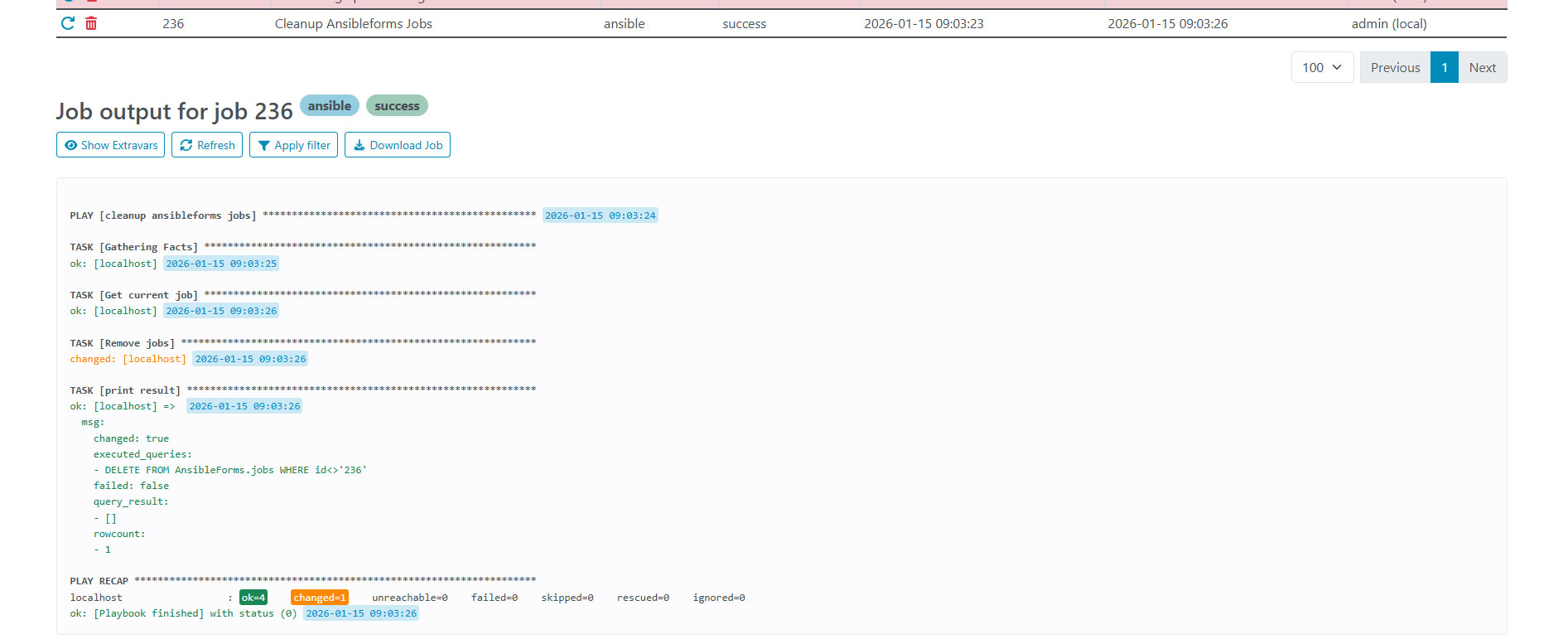
While a job is running (or an abort is pending), the page polls it every 5 seconds and the output grows as the job writes it. Only jobs that started less than 6 hours ago are polled; use Refresh to reload any other job.
The output toolbar has:
| Button | What it does |
|---|---|
| Show Extravars | Shows the extravars the job ran with, as JSON or YAML (View as YAML), with a copy icon |
| Show Artifacts | Shows the artifacts an AWX / AAP job returned (awx jobs only) |
| Refresh | Reloads the output |
| Apply filter | Hides the tasks whose name matches the output filter; Remove filter shows them again |
| Copy Output | Copies the output as plain text, with the filter applied or not |
| Download Output | Downloads the output as ansibleforms-job-<id>.txt |
Show Extravars requires the showExtravars role option and Show Artifacts the showArtifacts role option (see role options). Values of password fields and keys matching MASK_EXTRAVARS_REGEX are masked.
The filter is set by REGEX_FILTER_JOB_OUTPUT, \[low\] by default. Put [low] in the name of a noisy task, and Apply filter hides that task and its lines.
Multistep jobs show the current step’s output beside the main job; AWX/AAP workflows also show their nodes’ status.