Schedules
Run a form later or on a cron schedule, and manage every schedule
- The form actions
- Schedule a form
- The Schedules page
- Cron expressions and time zone
- How a schedule runs
- Planned runs
- When the form changes
- Scheduled jobs in the job history
The form actions
A form can do more than run right away: the dropdown next to its Submit button holds three more actions.
| Action | What it does | Role option |
|---|---|---|
| Schedule (recurring) | Creates a schedule that runs the form on a cron expression | allowScheduledJobs |
| Run later (one-time) | Creates a schedule that runs the form once, at a date and time you pick | allowPlannedJobs |
| Store | Saves the field values, to load them into the form again later | allowStoredJobs |
An action whose role option is off is not shown. The form is validated before any of them, as it is for Submit. Both schedule actions create an entry on the Schedules page; Store creates an entry on the Stored jobs page. The sidebar of the Jobs page opens them under Future, as Scheduled and Stored. The role options are described in Role options.
Treat
allowScheduledJobsas an admin-level option. Its schedules are not owned by the user who created them: every user with the option sees and can change all schedules. Such a schedule also runs with admin rights, for any form, whatever the creator’s own access. Grant it only to roles you would trust as admins.
Run later (one-time) needs only
allowPlannedJobs. For a user withoutallowScheduledJobs, it plans a run as that user: the server checks that the user may run the form, and the job runs as them, owned by them, when its time comes (see Planned runs).
Schedule a form
Fill in the form, then open the dropdown next to Submit and choose one of the schedule actions.
- Schedule (recurring) opens Create schedule: enter a Name and a Cron expression (the default,
0 0 * * *, runs daily at midnight), then select Create schedule. - Run later (one-time) opens Run later: enter a Name and pick the Run at date and time, then select Schedule job.
The name must be unique across all schedules. The schedule keeps the form’s name and a copy of the extravars the form produced at that moment, written as YAML; every run uses that copy, so edit it on the Schedules page to change what the job gets.
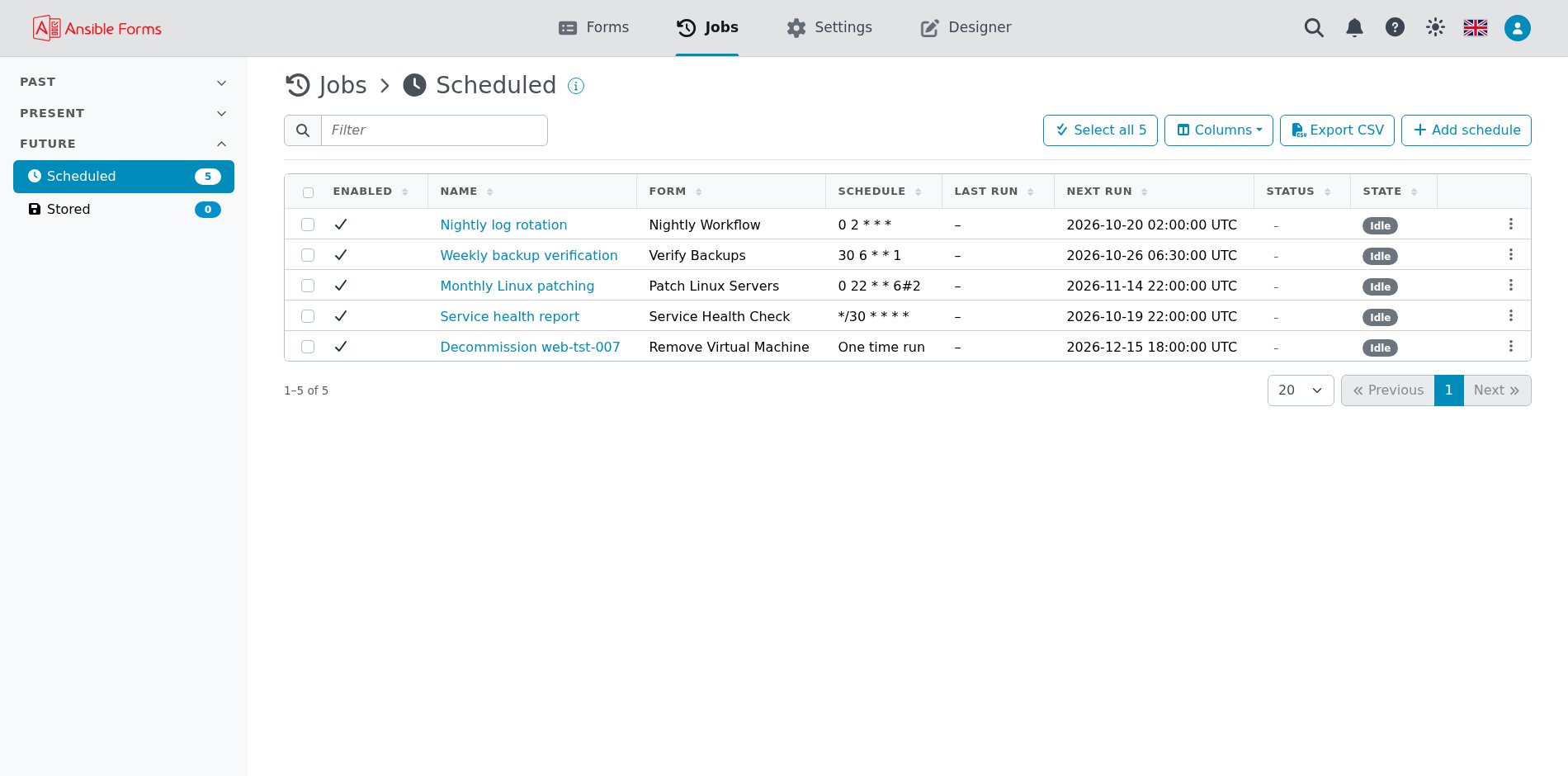
The Schedules page
The Schedules page lists every schedule, with its Enabled column from 7.3.0, and needs allowScheduledJobs. Each row’s menu offers:
| Action | What it does |
|---|---|
| Edit | Changes the name, the type, the cron expression or run time, the form and the extra vars |
| Run now | Runs the schedule now, without waiting for its cron expression or run time |
| Enable or Disable | Turns the schedule on or off, whichever applies, as its Enabled column shows (from 7.3.0) |
| Delete | Removes the schedule; it stops running at once |
| Last output | On the schedule’s page, what the last run reported, such as the number of the job it started |
A schedule can also be created here from scratch. Pick the Form, then either tick One Time Run and set Run At, or leave it clear and set a Cron Schedule. Extra vars is YAML with no form to fill it in, so add the values the playbook needs yourself, as a dictionary (key: value pairs).
The Cron Schedule field is a cron editor: it describes the expression in words, offers presets and previews the next runs. The server refuses an expression it cannot run, or one that can never occur.
From 7.3.0 each schedule has an Enabled switch, to pause it without deleting it. A schedule turned off stays on the page with its settings, but does not run on its own: a recurring one skips its cron ticks, and a one-time one waits past its Run At until it is turned on again. Run now still runs it on demand. A new schedule is on, and the schedules that existed before 7.3.0 are on after the upgrade.
Cron expressions and time zone
A recurring schedule takes a standard 5-field cron expression: minute, hour, day of month, month and day of week.
| Expression | Runs |
|---|---|
*/15 * * * * | Every 15 minutes |
0 2 * * * | Every day at 02:00 |
30 7 * * 1-5 | Monday to Friday at 07:30 |
0 0 1 * * | At midnight on the first day of every month |
More examples, and the cron features the editor does not accept, are in the FAQ under Which cron expressions can I use?.
Cron schedules run in the server’s time zone, set with
LOG_TZ(defaultUTC), not in the time zone of your profile or your browser. The cron editor previews the next runs in that same zone.
How a schedule runs
When a schedule is due, it is queued, and the server starts queued schedules one at a time, checking the queue every 10 seconds.
- Recurring schedules skip a tick while the previous run is still queued or running, so runs never overlap.
- One-time schedules run within a minute of Run At, then are deleted, also when started with Run now.
- Status is
successwhen the job was started andfailedwhen it could not be. Asuccessonly says the job was launched: open the job to see how it ended.
A schedule created with allowScheduledJobs runs as the built-in user Schedule Service (type schedule) with the admin role. It can run any form, whatever the access of the person who created the schedule, and ansibleforms_user in its extravars describes that user. A planned run runs as the user who planned it instead.
The job also gets a schedule object (with its id, name and form), so a playbook knows a schedule started it:
schedule:
  id: 3
  name: Nightly cleanup
  form: Cleanup servers
Planned runs
Run later (one-time) by a user without allowScheduledJobs creates a planned run: a one-time schedule tied to that user.
- When it is planned, the server checks that the user may run the form (its
roles), and verbose mode needsallowVerboseMode. A planned run is always one-time; a cron expression is refused. - Under launch validation
enforce, the field values are checked when it is planned, so a run that would be refused is refused while the user is still looking. - When it runs, the job runs as that user, owned by them, through the same checks as a launch from the browser: the form’s roles as they are then, the reserved extravars stripped, and launch validation.
ansibleforms_userdescribes them.
The planner does not see the Schedules page, which needs allowScheduledJobs; the job appears in their own job history.
When the form changes
A schedule refers to its form by name and runs it as it is defined at the moment of each run.
- The form is edited: the next run uses the new definition (playbook, template, inventory) with the extravars stored in the schedule. The form is not rendered, so no field is recalculated; edit the extra vars of the schedule to match.
- The form is renamed or removed: the run fails, Status becomes
failedand Last Output readsFailed to launch : No such form '<name>'. Edit the schedule and pick the right form, or delete it.
Scheduled jobs in the job history
Every run of a schedule creates an ordinary job, listed on the Jobs page with Schedule Service as its user, or, for a planned run, with the user who planned it.
A Schedule Service job does not belong to the person who created the schedule, so it is visible only to admins and to users with showAllJobLogs; a planned run’s job is visible to its user too. The Last Output of the schedule names the job it started, so you can find it in the list.