Following a job
Live output, extravars, filters and downloads
- Follow a job
- Finding a text in the output
- Moving through a long output
- Task results
- The workflow graph
- Hosts and tasks
Follow a job
Clicking a job opens its page: the job’s form as the title, its actions in the header and its output below.
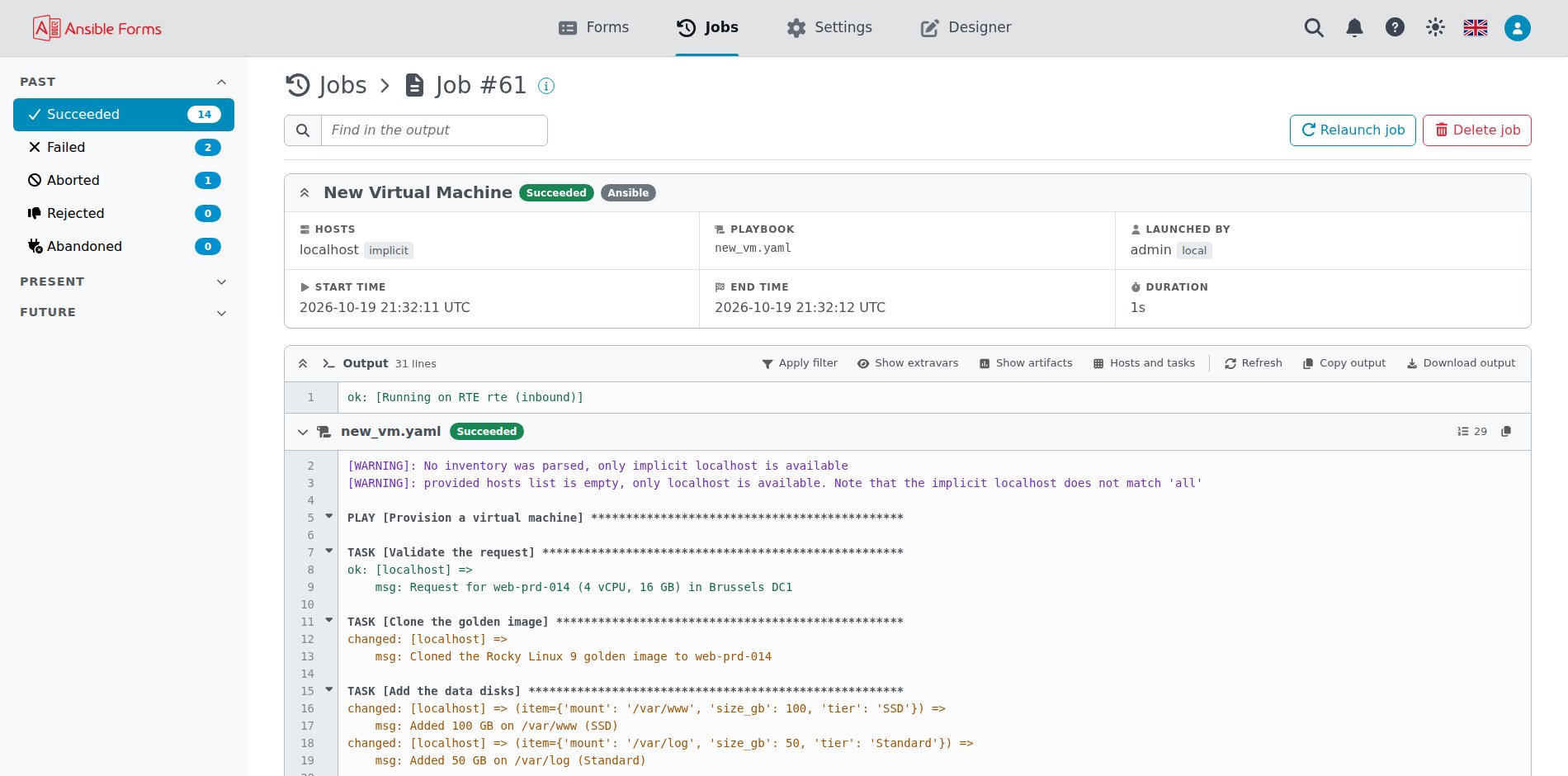
From 7.3.0 the page is made of cards, and each one folds away under its header:
| Card | What it shows |
|---|---|
| Summary | The job’s name, status and type as its header, and its facts below in a grid of three columns (two, then one, on a narrow page) |
| Workflow | For a workflow job, also an AWX or AAP workflow job, its graph and its number of nodes (see The workflow graph) |
| Output | The job’s output and its toolbar |
A job that ran on AWX, AAP, Ascender, Jenkins, Semaphore or Rundeck shows its number there as a link to its page in that tool, opened in a new tab. The link is kept on the job, so it still works when the runner is renamed or removed later.
The page updates live: the server sends an event each time a job is launched, changes status, writes output or is deleted, and the page reads the job again, so the output grows as the job writes it. The jobs list updates the same way. Refresh reloads the job by hand.
While you are at the end of the output, the page follows it down as new lines come in. Scroll up to read an earlier line and it stays where you are: Jump to latest then shows over the bottom of the output, and turns to New lines once more came in. Click it, or scroll back down to the end, to follow the new lines again. The output on the form’s page, after Submit, and the server log follow their new lines the same way.
The output toolbar has:
| Button | What it does |
|---|---|
| Show extravars | Shows the extravars the job ran with in a panel over the output, with a JSON / YAML switch and Copy |
| Show artifacts | Shows the job’s artifacts in the same panel (see below) |
| Show parameters | Takes the place of Show extravars for a Jenkins job: the values it ran with, its build parameters |
| Show payload | Takes the place of Show extravars for a Rundeck job: the payload it was sent |
| Hosts and tasks | Shows a playbook’s hosts and tasks over its output (see Hosts and tasks) |
| Refresh | Reloads the output |
| Apply filter | Hides the tasks whose name matches the output filter; Remove filter shows them again |
| Copy output | Copies the output as plain text, with the filter applied or not |
| Download output | Downloads the output as ansibleforms-job-<id>.txt |
Show artifacts is offered for every job that is not a template job, such as a playbook on the RTE or a workflow (empty when its playbooks gathered no artifacts with set_stats), and for a template job that ran on AWX, AAP or Ascender. Semaphore, Rundeck and Jenkins jobs have no artifacts, so it is never offered for them.
At the left of the toolbar, the Collapse all button folds every section of the output (each play and task) and turns to Expand all, which unfolds them again.
Show extravars requires the showExtravars role option and Show artifacts the showArtifacts role option (see role options). Values of password fields and keys matching MASK_EXTRAVARS_REGEX are masked.
The filter is set by REGEX_FILTER_JOB_OUTPUT, \[low\] by default. Put [low] in the name of a noisy task, and Apply filter hides that task and its lines.
A multistep job’s page shows every step under the main job, one under the other, each under a title bar such as Step 1 · Prepare the server (job id 98) with its status. Click a title (or press Enter or Space on it) to fold that output away, and again to unfold it. AWX/AAP workflows also show their nodes’ status.
Workflow jobs keep every node’s output in their own, under a WORKFLOW NODE banner per node; they draw their graph, live, and a click on a node opens its output.
Finding a text in the output
From 7.3.0 the job’s page has a search box, Find in the output, on its title line, left of the job’s actions.
Every place the text appears in the output is highlighted, whatever its case, and the page moves to the first one. Enter goes to the next, shown stronger, and the toolbar says which one of how many (2 of 4), or Not found. Searching unfolds the output and its sections first, and while the job runs the new lines are searched too, without moving the page.
Moving through a long output
From 7.3.0 a long output, on the job’s page and under a form after Submit, has these ways through it:
| Control | What it does |
|---|---|
| Sticky headers | The header of a section (a workflow node, the job’s playbook, a multistep job’s step) stays at the top while its lines scroll by |
| 2 failed | Counts the failed tasks, leaving out the failures Ansible was told to ignore; each click goes to the next one, unfolded and highlighted. Without failed tasks, 1 error counts the error lines instead |
| Line numbers | Each line number links to its line, such as #L45 in the address: opening that address scrolls to the line and highlights it |
| Up and down buttons | Shown at the bottom right once the page is scrolled, to go back to the top or to the end |
| Running and Abort | While the job runs, the bar of the form’s page is held at the bottom of the window, and Abort there stops the job at once |
Task results
From 7.3.0 a host’s result line in a playbook’s output opens that result in a Task result dialog, as AWX does.
The line, the result body after it (=> { ... }) and the error printed before a failed result highlight as one block on hover, and a click opens the dialog. It works on the job’s page and under a form after Submit, for a playbook that ran on an RTE of 7.3.0 or later, as the result comes from the same events as Hosts and tasks. The dialog has these tabs:
| Tab | What it shows |
|---|---|
| Details | The status, host, play, task, module, loop item, start time, duration, return code and message |
| JSON and YAML | The module’s whole result, coloured and with numbered lines |
| Standard output and Standard error | The result’s stdout and stderr, when it has them |
The whole result, and with it the JSON, YAML and output tabs, is stored only when the job runs in verbose mode, as the output then shows it too; otherwise the dialog shows the details alone. Even in verbose mode the module’s arguments (invocation) are left out, values of keys that look like a secret are masked, and a result is cut once it is larger than 64 KB of JSON.
The workflow graph
From 7.3.0 the graph of a running workflow slides to keep the running node in sight.
Scroll the graph away and it stays where you put it, with a Follow the running node button to follow it again. Hovering a node shows its card with the whole name and brings the node and its links into focus, the rest of the graph faded. The graph has Fit to screen and Full screen buttons, and under a form after Submit a click on a node opens its output as on the job’s page.
Hosts and tasks
Since 7.3.0, a playbook job that ran on an RTE of 7.3.0 or later records its structured events next to its text output: each play, task and host result, and the recap. Hosts and tasks, in the output toolbar, shows them in a panel over the output, on the job’s page and under a form after Submit. It is offered once the job has events, and the panel is read again every few seconds while the job runs:
| View | What it shows |
|---|---|
| Grid | The recap per host (ok, changed, failed, unreachable, skipped, rescued, ignored), then a grid of hosts by tasks: each cell is coloured by the host’s result for that task, with its message and time on hover, or not run |
| Timeline | Each task as a bar, as long as its slowest host took, with its time in seconds and the total |
The text output stays as it is. The events are written by the RTE’s own af_events callback plugin, so the playbook needs no change.